A heading rail pinned to the edge of the editor, in the style of Codex's document navigator. Companion to the gogoga theme, but it depends on nothing from the theme and works anywhere.
The interface follows Obsidian's language setting — English, or Simplified Chinese when Obsidian is set to Chinese.
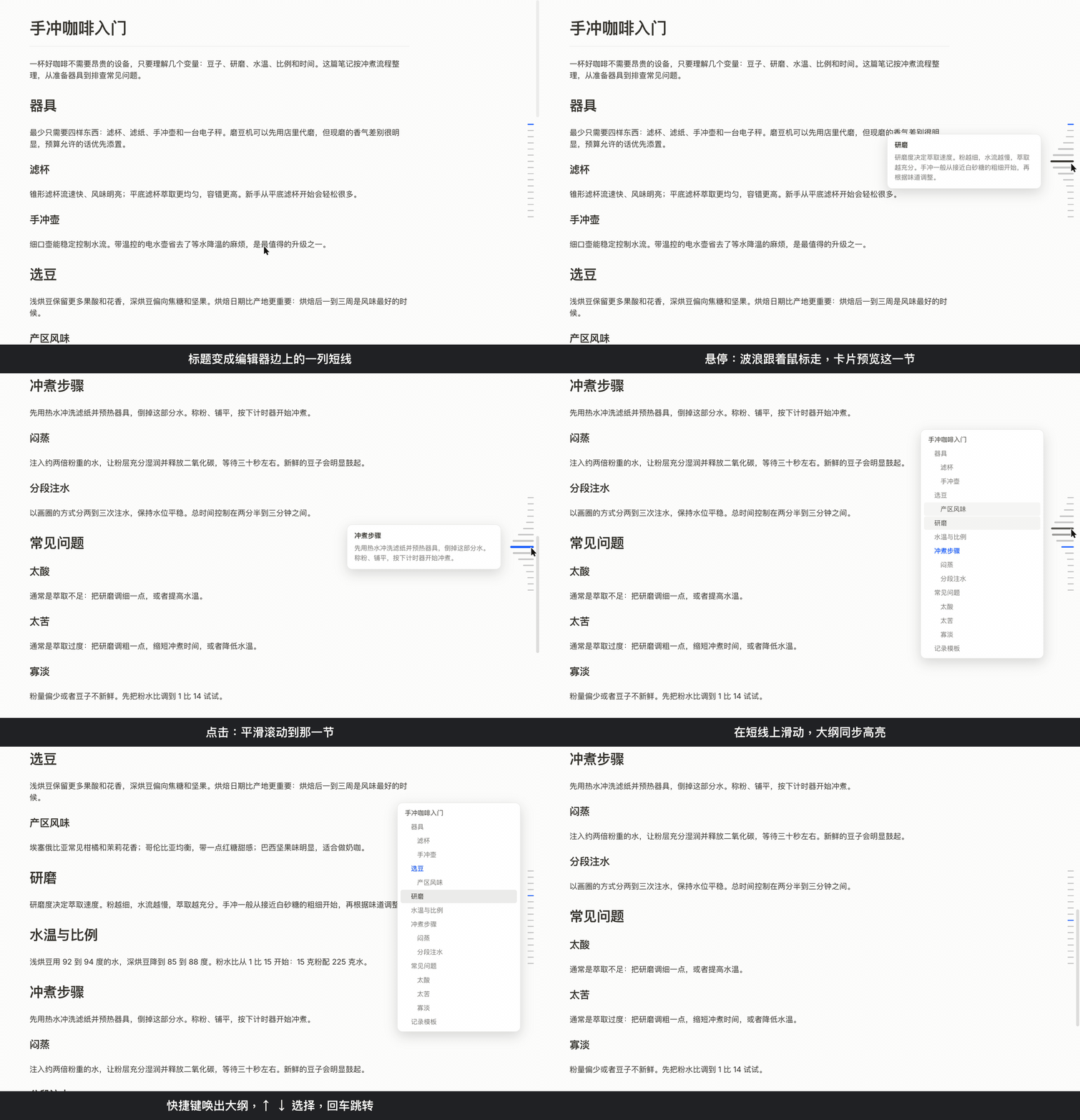
What it does
- At rest: a column of identical short dashes, one per heading. The dash for the section you are currently reading is accent-colored.
- On hover: a dock-style wave. Each dash grows by a gaussian falloff of its distance to the cursor, so the crest follows the pointer continuously rather than snapping between items.
- Preview: the section under the crest shows a card with its heading and the opening lines of that section, markdown stripped. The card slides along as the crest moves.
- Click: scrolls to that heading.
- On rest: hold the pointer still on the rail for a moment and the whole outline unfolds beside it, indented by heading level. Scrubbing the wave never triggers it — the timer re-arms on any real movement, so only actually coming to a stop opens the panel.
- While the panel is open: the rail becomes its scrubber. Running the pointer down the dashes highlights the matching row instead of stacking a preview card on top of the panel; a click commits and closes.
The panel is a plain flyout: the rail does not move. Nothing shifts out from under the cursor mid-gesture, and a fifty-heading note behaves exactly like a five-heading one (the panel scrolls internally and opens with the current section in view). Rows slide in from the rail side with a short per-row stagger.
Leaving either the rail or the panel starts a 180ms close timer that entering
the other cancels, which is what lets you cross the gap between them. Escape
closes. The Toggle global outline command opens it pinned — it stays until you
close it, and takes keyboard focus so up/down/enter navigate it.
One rail per open markdown pane; rails follow pane splits and close with them.
Focus mode and hover highlight (gogoga theme)
Two commands — Toggle focus mode (切换聚焦模式) and Toggle hover line highlight (切换悬停行强调) — switch on writing effects built into the
gogoga theme: in focus mode
only the paragraph with the cursor stays bright, and hover highlight tints the
line under the mouse. Bind them in Settings → Hotkeys; the same switches are at
the bottom of this plugin's settings, and the state survives a restart. Under
other themes they do nothing.
Settings
Side (Position, left/right), minimum heading count before the rail
appears (Minimum headings), whether hovering shows the preview card
(Show section preview on hover), how the panel opens (Open mode:
Open on rest vs. Hotkey only) and after how long (Rest delay), panel
width (Panel width), and how deep the panel goes (Panel depth) — headings below
the depth cap are left out of the panel but keep their dash on the rail.
A few more panel options, all off by default:
Keep the full outline open: the full outline stays open at the edge of the note instead of the rail, like a docked outline panel, and the note makes room for it. Clicking a heading scrolls to it; Esc doesn't close it; the outline command moves keyboard focus into it. Not on phones.Keep the outline open after clicking: clicking a heading scrolls to it and leaves the panel open; close it with Esc or the command. While it stays open, the section you scroll to is kept in view in the panel.Expand only the current heading: the heading you are reading (or just clicked) is expanded all the way and the headings above it are opened; everything else folds down toLevels shown for other headings(top headings only by default). In a note under one single top heading, that heading counts as the title and levels count from the headings below it. Arrows appear in front of headings: click to expand or collapse one level, double-click to expand the whole branch; ←/→ work too when the panel has focus.Show full titles: long headings wrap instead of being cut off.
$formulas$ in headings render in the panel and the preview card.
Notes on scrolling behavior
Both modes virtualize their DOM, and both therefore trade some smoothness for landing on the right line.
Editing mode branches on cm.viewport, the range CodeMirror has actually
rendered. Inside it every line height is measured rather than estimated, so
the plugin's own arithmetic is exact and it glides. Outside it, placement is
handed to EditorView.scrollIntoView, which re-measures until its target is
stable — exact, but instant, since it defers the scroll to its next measure
pass and there is no reliable moment to intercept and re-animate.
Two things make the naive approach wrong, and both are easy to miss. CM6
reports block positions relative to the document top while scrollTop is
relative to the scroller top, and Obsidian pads the scroller by
--file-margins — so lineBlockAt().top used directly is off by that
padding (32px by default), in the jump and in current-section tracking
alike. And a line that has never been rendered carries an estimated height,
so a target computed from the height map drifts by however much unmeasured
content lies in between, then drifts further mid-flight as the scroll
measures those lines on the way past.
Reading mode is virtualized — sections scroll out of the DOM entirely — so
the plugin scrolls smoothly when the target heading is currently rendered
and falls back to Obsidian's line-based applyScroll (an instant jump) when
it is not. Nearby headings therefore glide and distant ones jump. Current-
section tracking in reading mode uses getScroll(), which is line-based and
unaffected by virtualization.
Tuning
The wave constants sit at the top of main.js: BASE_W (dash length at
rest), MAX_EXTRA (added length at the crest), SIGMA (falloff radius in
px), and their height counterparts. Alongside them: DWELL_TOL (how much
drift still counts as holding still), CLOSE_GRACE, INDENT_STEP, and the
row STAGGER.
A CSS note
Panel rows are <button>s, and Obsidian's core button rules outrank a bare
all: unset. The reset therefore repeats itself for :hover and :focus,
and everything visual lives in a rule one selector deeper — otherwise the
:hover copy of all: unset claws the row's own styling back on hover and
the rows render as gray pills.